
Introduction
If you are looking to install IPTV on Firestick, you are in the right place. Amazon Firestick is one of the most popular streaming devices in the world, and it works perfectly with IPTV services. In this complete step-by-step guide, you will learn how to install IPTV on Firestick quickly and safely.
Whether you are new to IPTV or already using a streaming service, this tutorial will help you set everything up in just a few minutes.
What You Need Before Installing IPTV on Firestick
Before you install IPTV on Firestick, make sure you have:
- A stable internet connection (minimum 20 Mbps recommended)
- An Amazon Firestick device
- An active IPTV subscription
- Access to your IPTV login details (M3U URL or Xtream Codes)
Once you have everything ready, you can start the installation process.
Step 1: Enable Apps from Unknown Sources
Since IPTV apps are not always available directly in the Amazon App Store, you need to enable third-party installations.
- Go to Settings
- Click on My Fire TV
- Select Developer Options
- Turn ON Apps from Unknown Sources
This allows you to install IPTV apps on Firestick safely.
Step 2: Install the Downloader App
To install IPTV on Firestick, you need an app called Downloader.
- Go to the Amazon App Store
- Search for Downloader
- Click Download & Install
Once installed, open the Downloader app.
Step 3: Download an IPTV Player
To use your IPTV subscription, you need an IPTV player. Some of the most stable IPTV apps for Firestick include:
- IPTV Smarters
- TiviMate
- Smart IPTV Player
- XCIPTV
Inside Downloader:
- Enter the download URL of your IPTV player
- Click Go
- Install the app once downloaded
After installation, open the IPTV app.
Step 4: Add Your IPTV Subscription
Now it’s time to activate IPTV on Firestick.
Open your IPTV app and choose one of these login methods:
- Login with Xtream Codes
- Load M3U Playlist
Enter your:
- Username
- Password
- Server URL
Click Login.
Within seconds, your IPTV channels, movies, and VOD content will load.
How to Fix IPTV Buffering on Firestick
If you experience buffering after installing IPTV on Firestick, try these solutions:
- Restart your Firestick
- Restart your router
- Use Ethernet adapter instead of WiFi
- Clear cache in IPTV app settings
- Make sure your internet speed is stable
A high-quality IPTV subscription with anti-freeze technology also reduces buffering issues.
Best IPTV App for Firestick in 2026
While many apps work well, TiviMate and IPTV Smarters are considered the best IPTV apps for Firestick due to:
- Clean interface
- Fast loading
- EPG support
- Multi-screen support
- Stable performance
Choose the app that matches your needs and device performance.
Why Firestick is Perfect for IPTV
Amazon Firestick is ideal for IPTV because:
- It supports HD and 4K streaming
- Easy installation process
- Affordable device
- Compatible with most IPTV players
- Regular software updates
This makes it one of the best streaming devices for IPTV users worldwide.
Is IPTV Legal?
The legality of IPTV depends on the content provider and your country’s regulations. Always make sure you use a reliable IPTV service that respects digital content policies.
Final Thoughts
Installing IPTV on Firestick is simple and takes less than 10 minutes. By following this step-by-step guide, you can enjoy live channels, movies, and series in HD and 4K quality directly on your TV.
If you are looking for a stable and high-performance IPTV subscription compatible with Firestick, Smart TV, Android, and more, check our premium IPTV plans today and start streaming instantly.
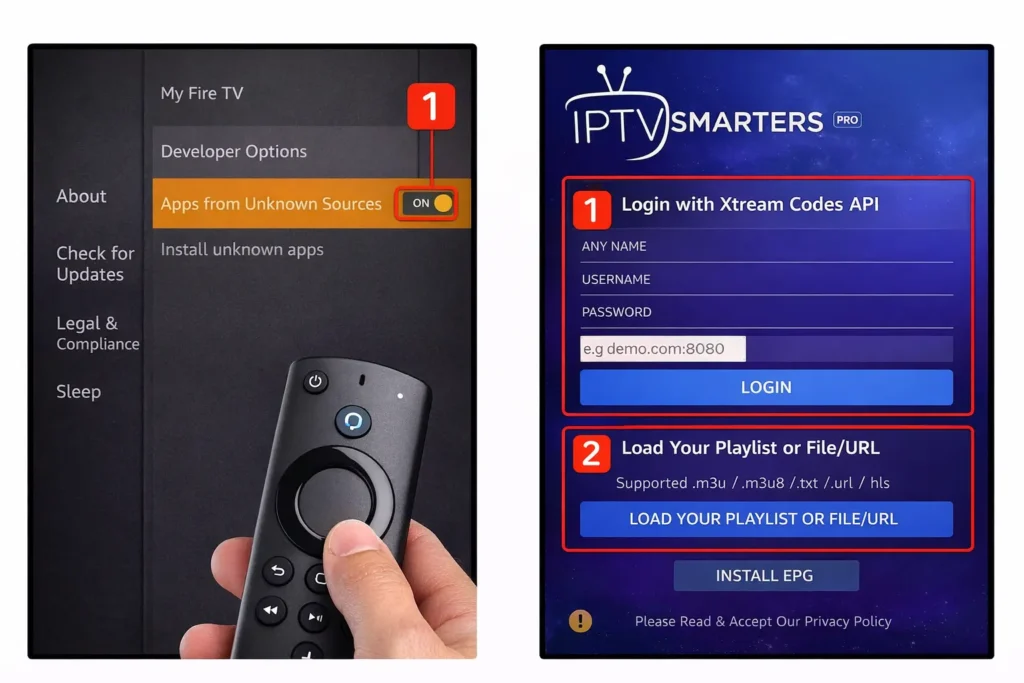
Step-by-step process to install IPTV on Firestick.